My web
Reactivating a System ID

This job aid explains how to reactivate a System ID. This process returns a currently deactivated System ID to an active state. Once you have reactivated the System ID with a new password, you will need to activate applications for the System ID as well.
-
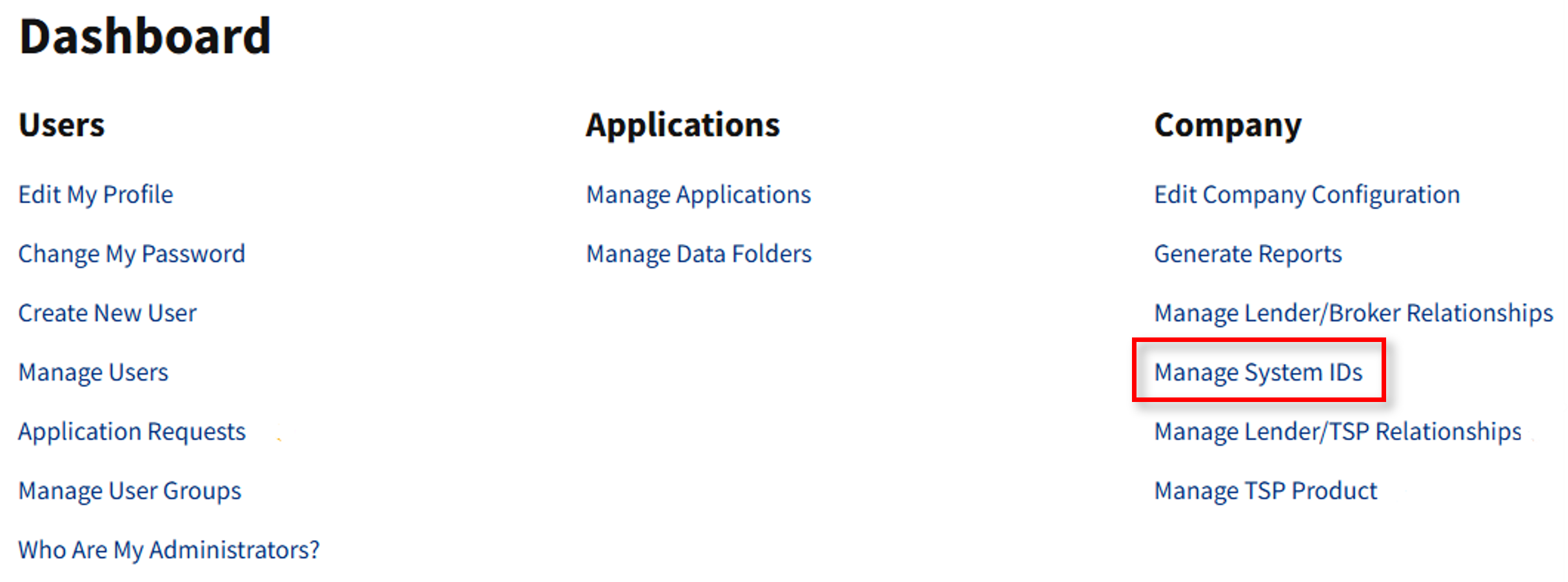
From the dashboard, select Manage System IDs.
-
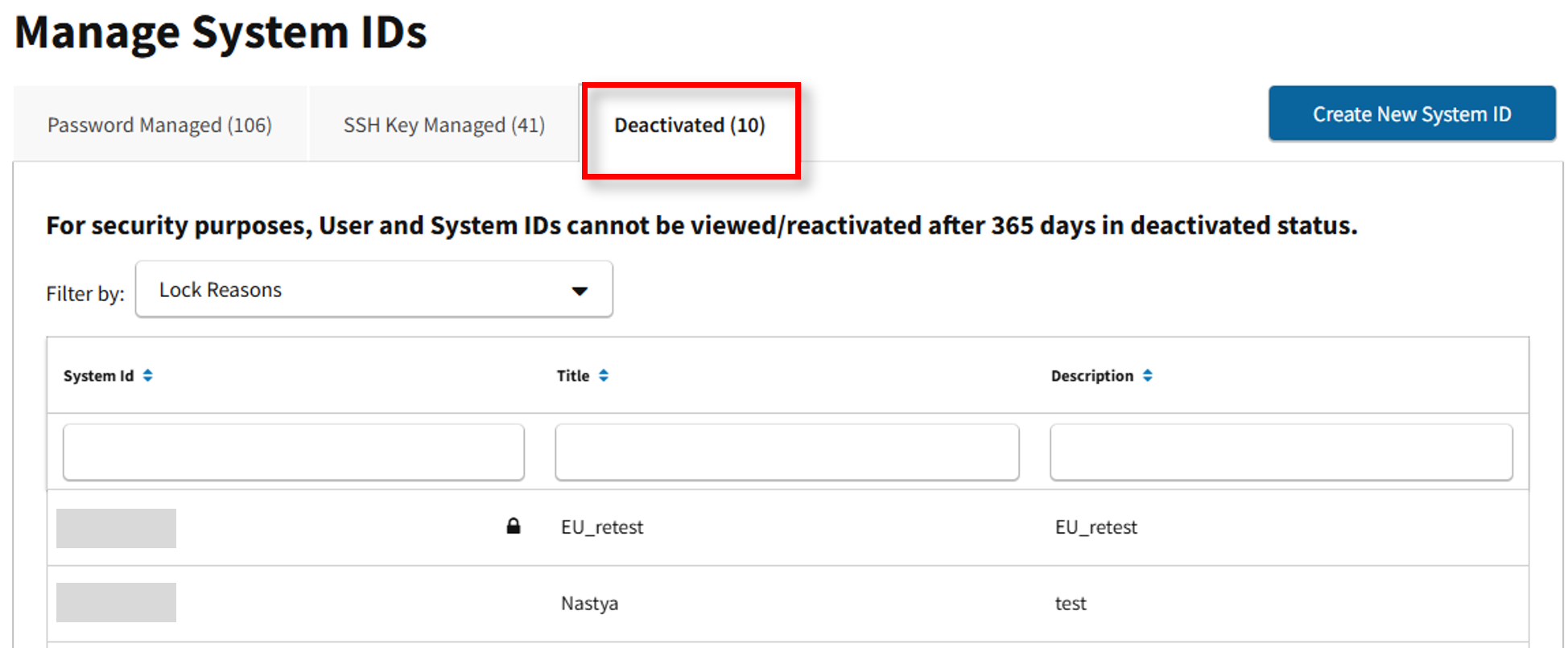
The Manage System IDs screen appears. Go to the Deactivated tab and select a deactivated System ID.
-
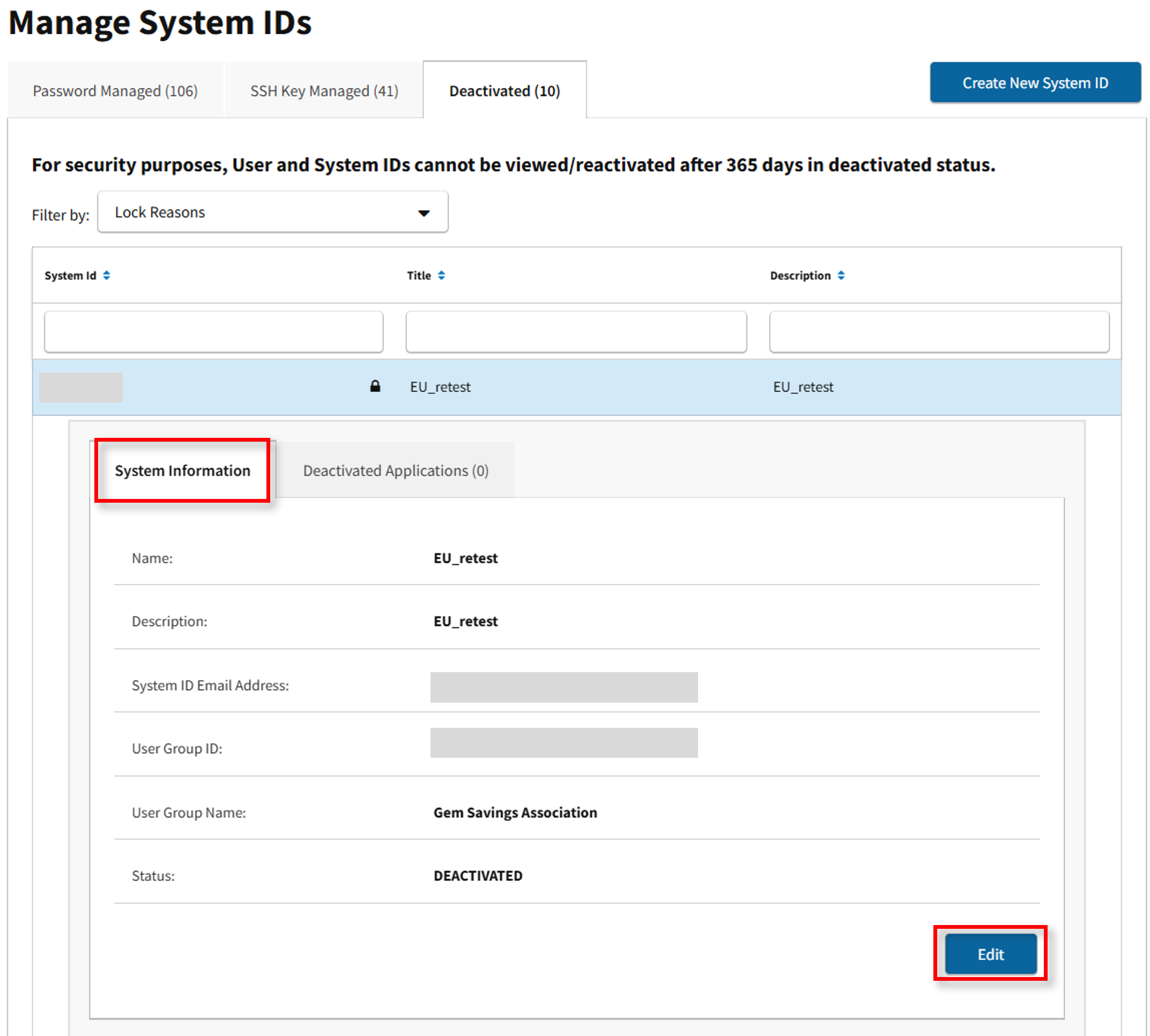
System Information for the select record appears. Select Edit.
-
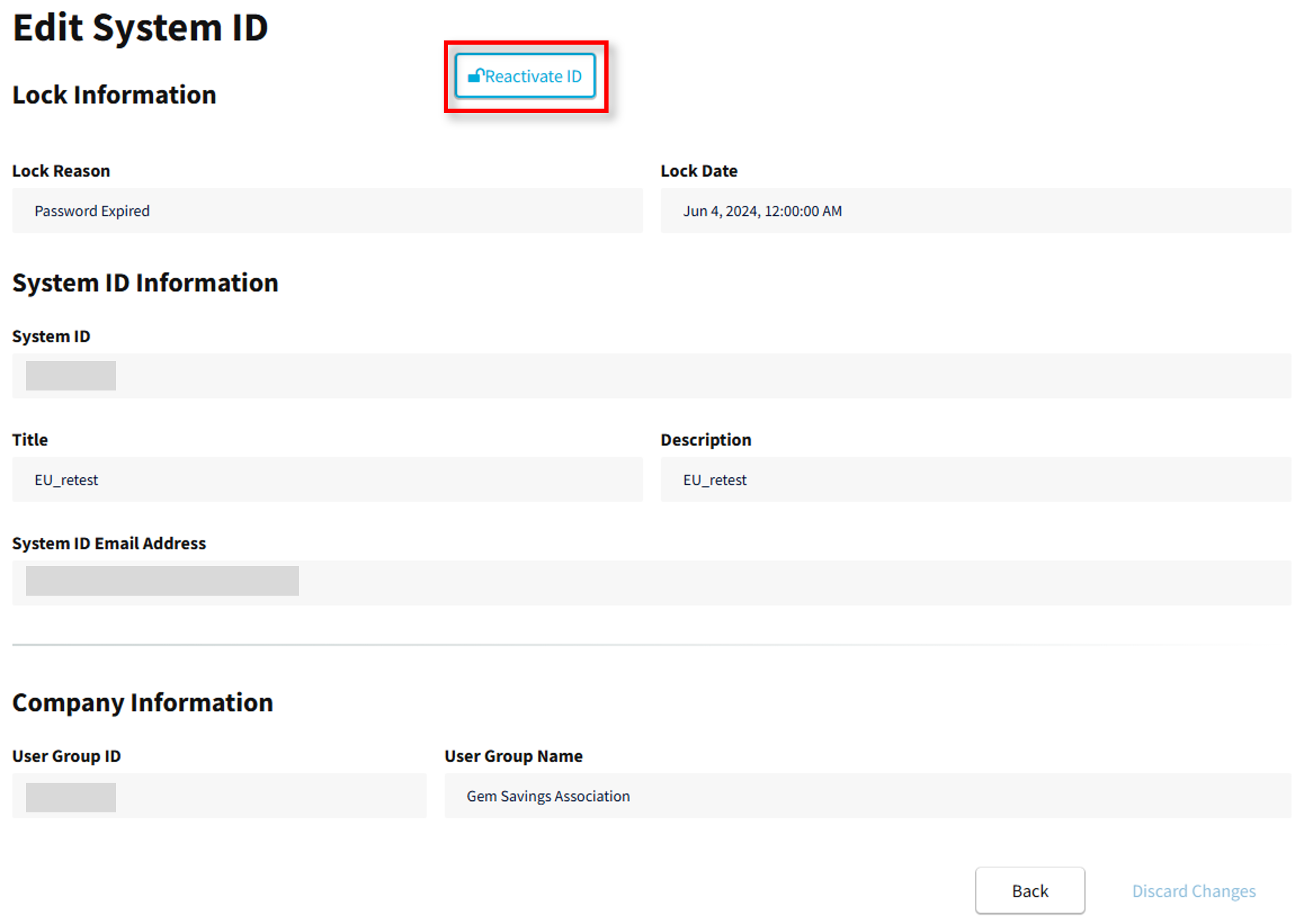
The Edit System ID screen appears. Select Reactivate ID.
-
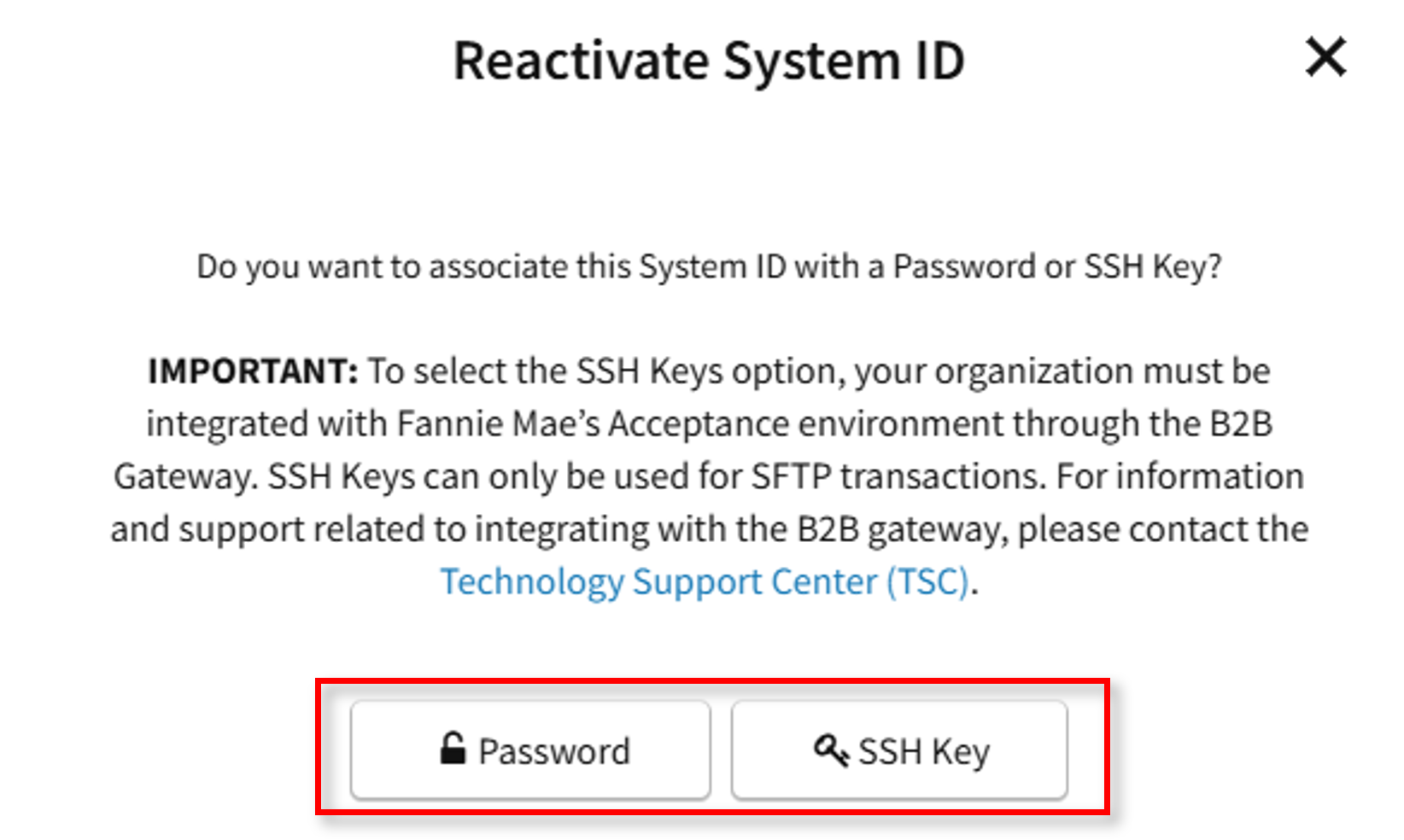
As part of the reactivation process, select whether you want to associate the System ID with Password or SSH Key authentication.
-
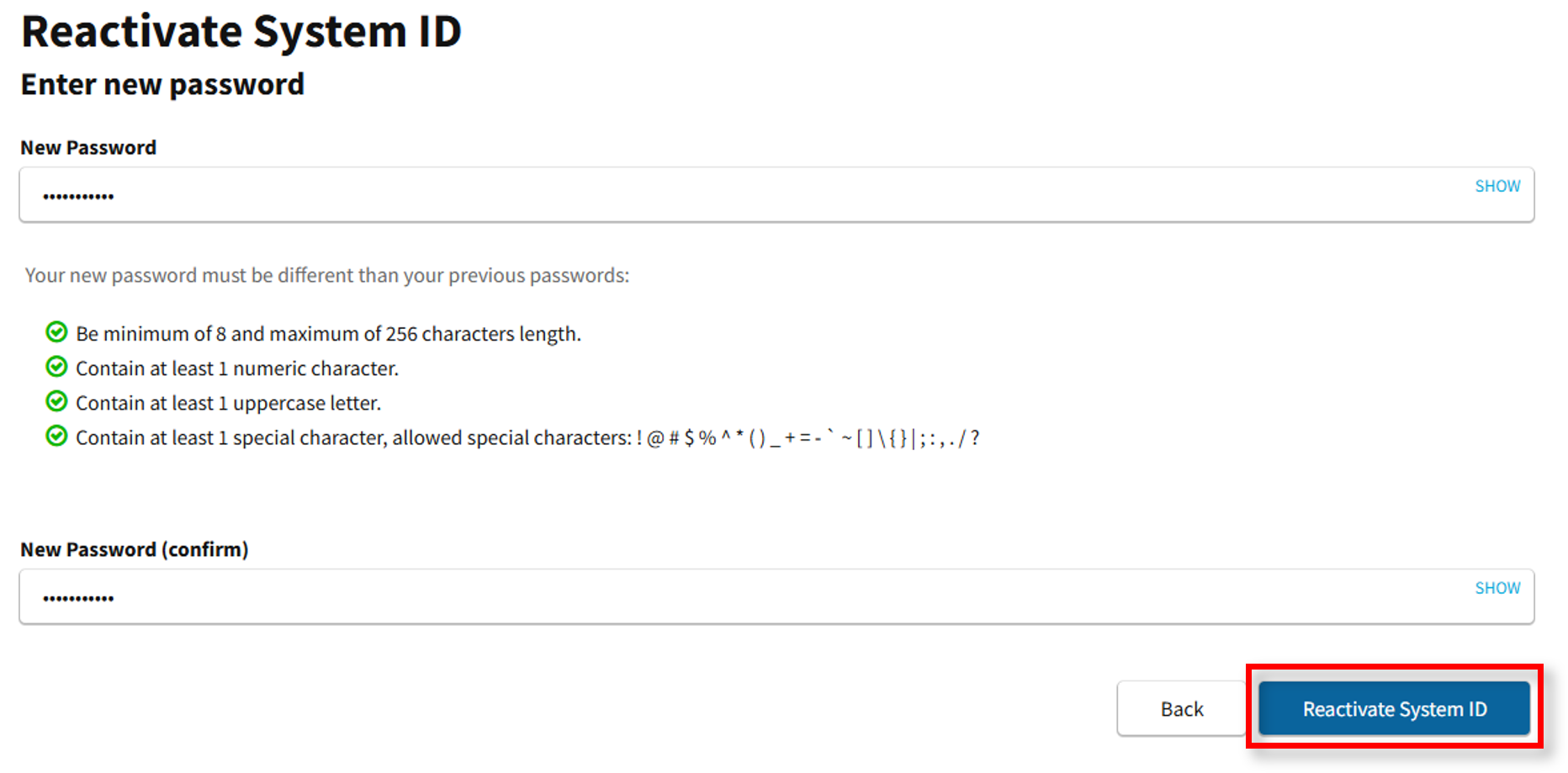
For Password-managed authentication, enter a new password and confirm that the password aligns with the listed parameters. Select Reactivate System ID.
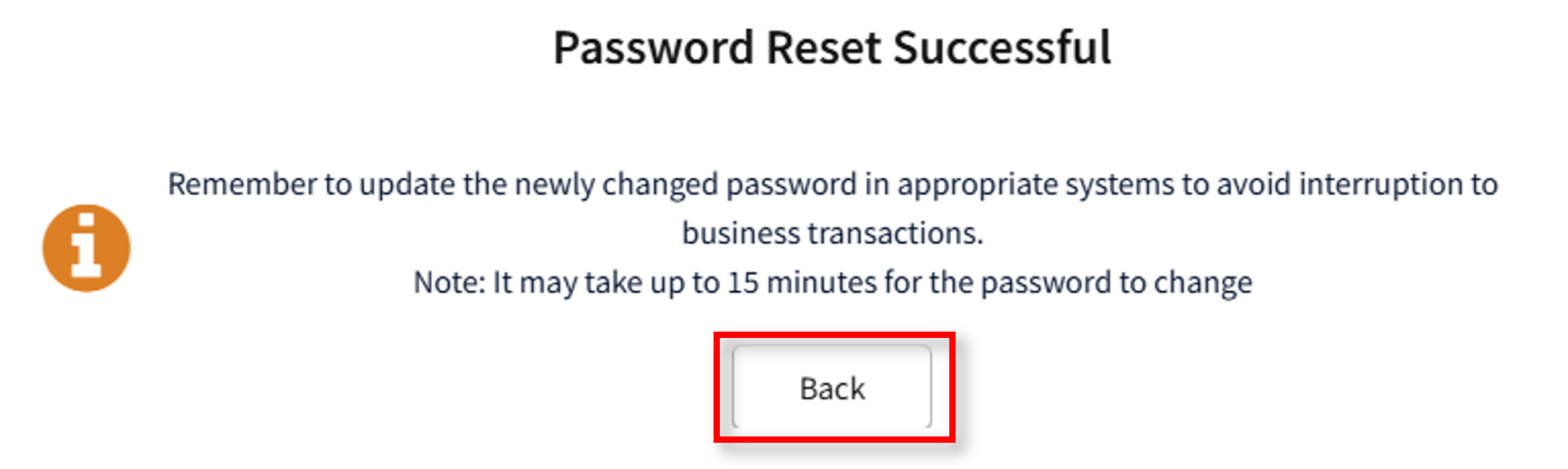
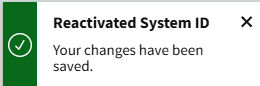
- Select Back and Password Reset Successful will appear in lower right corner.
-
Note: Application access must be granted as necessary before the System ID can be used. Follow the steps in the Granting Access to an Application job aid.
- For SSH Key-managed authentication, select Generate.
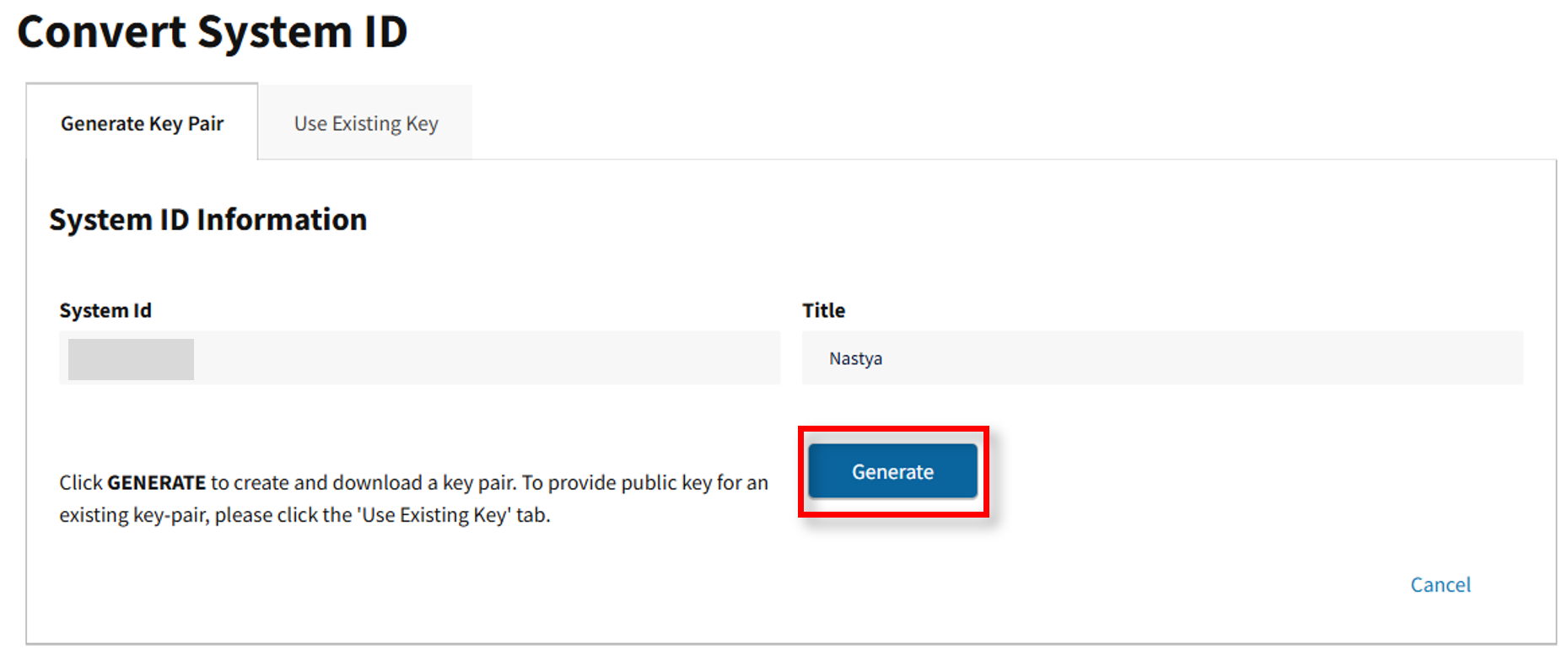
Note: It is important to plan before you begin to use SSH Keys. Be prepared to update the private key in the appropriate systems and servers to avoid any interruption to business activities. The public key will be updated within the Fannie Mae systems.
- Once the Update SSH Key message appears, select Continue.
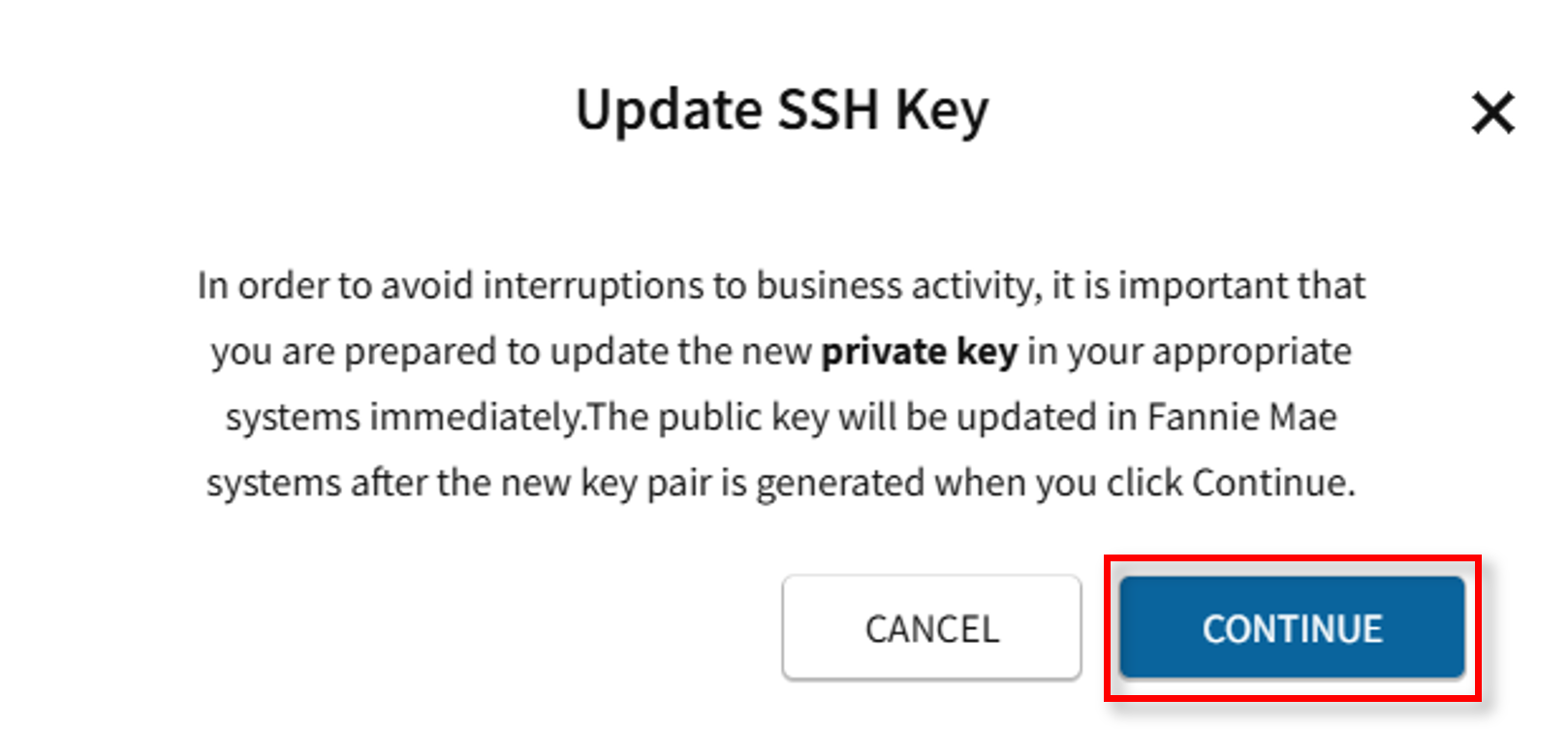
Note: If you already have an existing public key, click on the Use Existing Key tab and upload the public key.
-
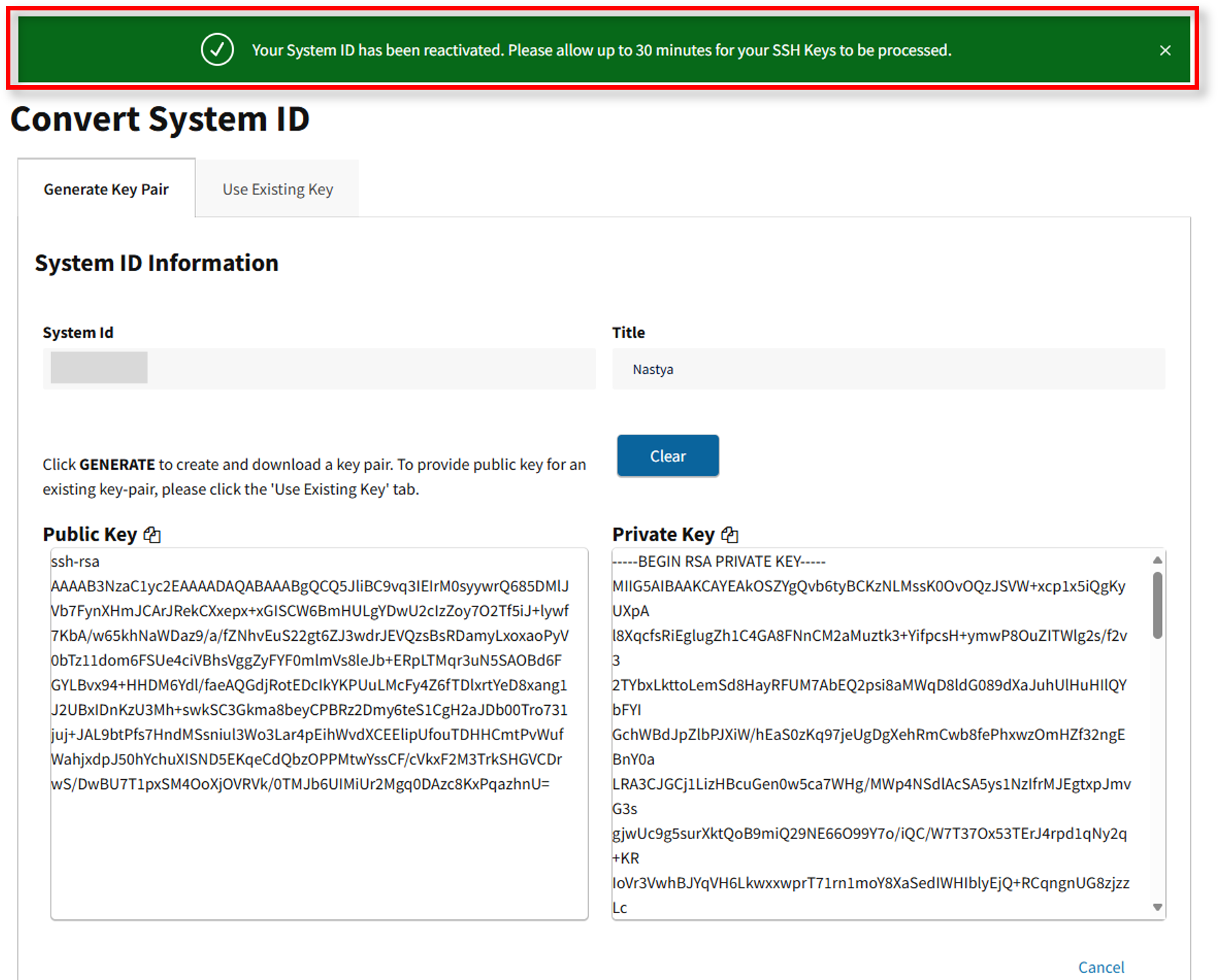
SSH keys will be generated and downloaded to your device. Select Continue to proceed.
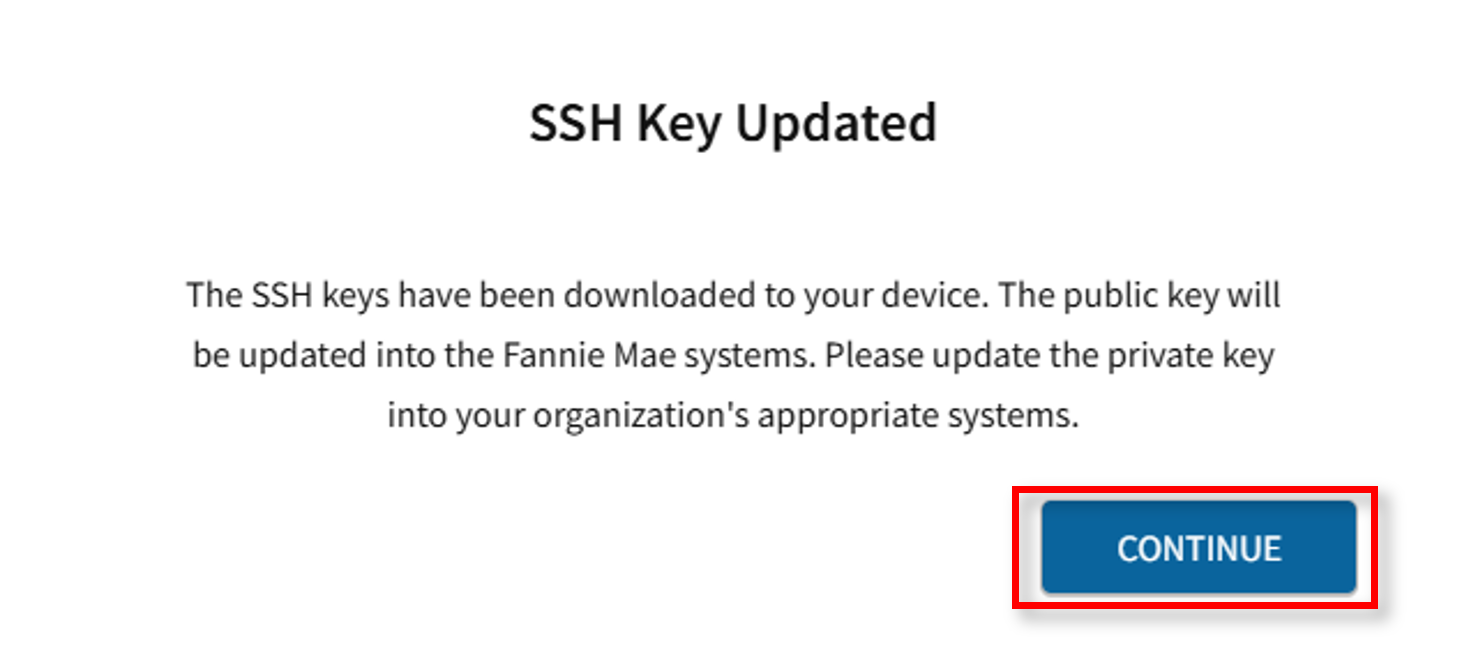
Note: Application access must be granted as necessary before the System ID can be used. Follow the steps in the Granting Access to an Application job aid.
- System ID has been reactivated.