My web
System IDs in Acceptance/Integration – Password Reset

This job aid explains how to reset an Acceptance/Integration environment System ID password.
- There are two ways to begin the password reset process for a System ID in Acceptance/Integration environment(s):
- Upon receipt of Fannie Mae’s Password Expiration Notice – System ID email notification, select the password reset tool link in the email to start the password reset process; OR
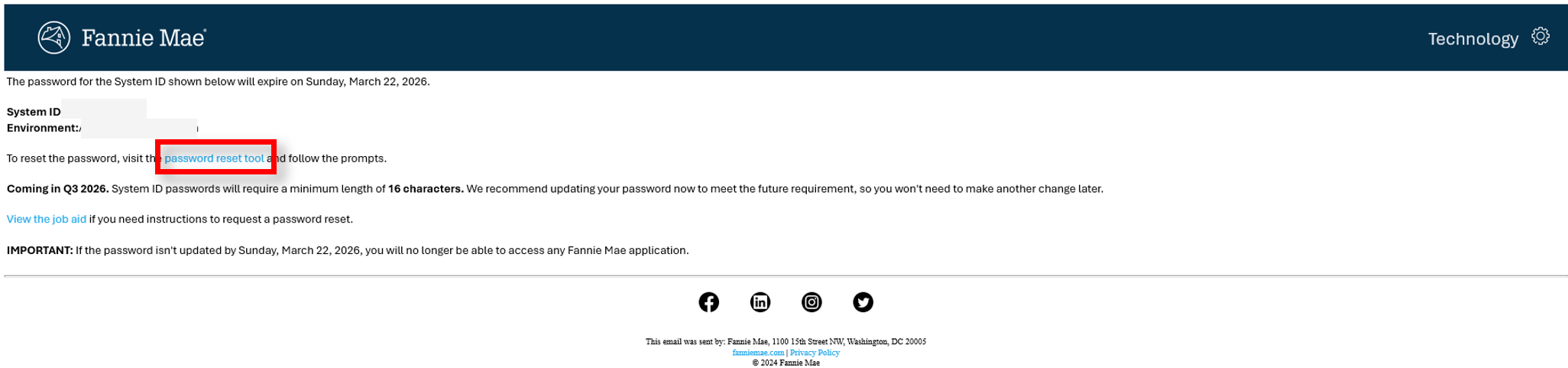
- Go to the Reset My Password link, enter your System ID in the field labeled User ID, and select Submit.

- Upon receipt of Fannie Mae’s Password Expiration Notice – System ID email notification, select the password reset tool link in the email to start the password reset process; OR
- The following message will appear, and you will receive an email with a temporary password reset link.

Note: Your password link will be valid for the next 24-hours. You will need to resubmit a password reset request if 24-hours are exceeded.
- Once you receive the password reset email, select Verify Request to confirm your System ID and you will be navigated to set up a new password.

If you do not receive an email with the verification request link, please follow the steps below:
- Confirm that the System ID you entered is accurate.
- Check your System ID Profile to ensure your email address is accurate.
- If you have not received the email within 15 minutes, repeat prior steps.
- Enter a new password following the criteria listed on the screen and select CHANGE PASSWORD.
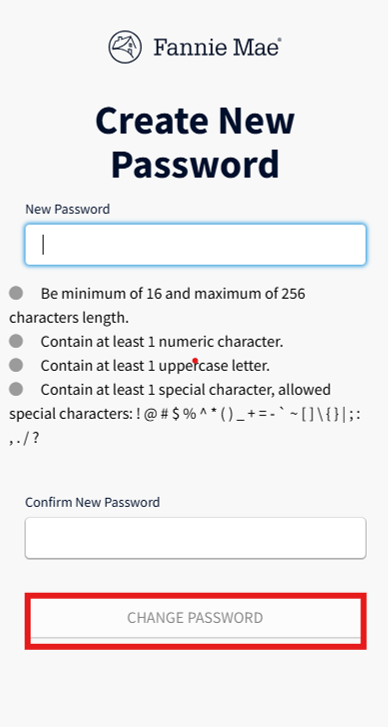
Note: Your new password must be different than your previously used passwords
- The Password Reset Complete message will appear and the User will receive two email messages indicating that the password has been reset successfully.


