My web
Search for Loan(s)

To search for a request(s), follow the steps below:
- Click Search.
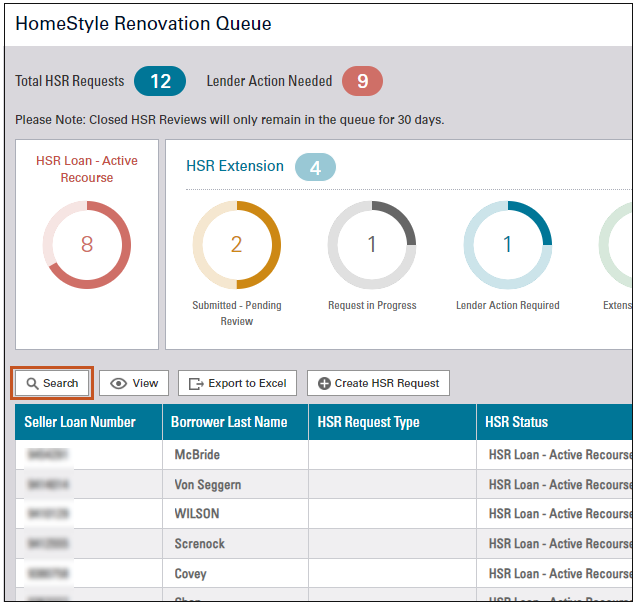
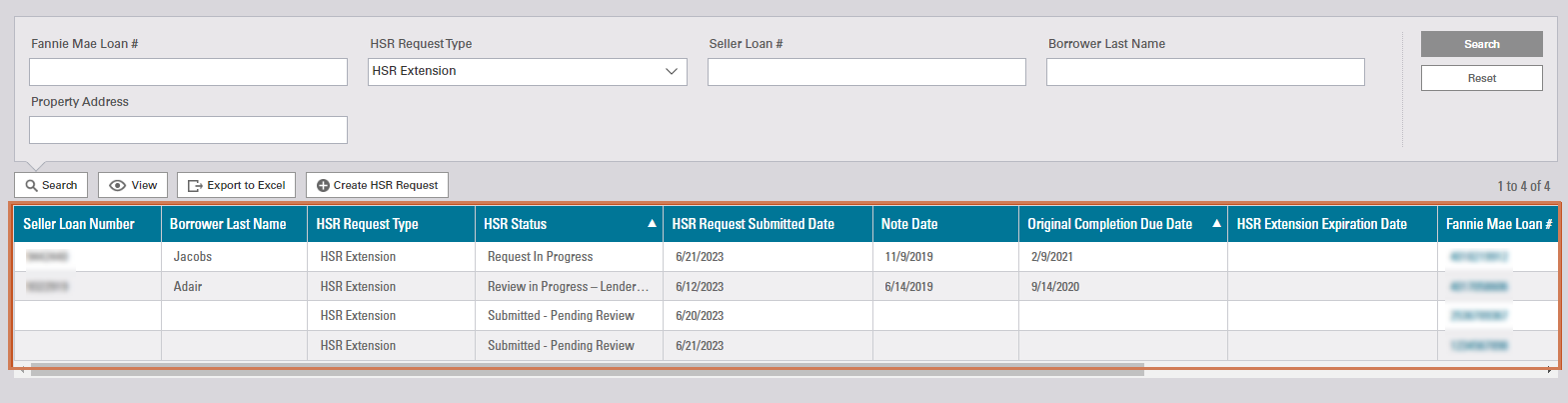
- Enter desired search criteria in appropriate Search Criteria fields.
- Click Search.
Note: HSR Extension was selected in the HSR Request Type drop-down box.

Result: Criteria matched requests display.
Creating A HomeStyle Renovation/HomeStyle Refresh Request
To create a request for a HomeStyle Renovation/HomeStyle Refresh Extension or Recourse Removal, follow the steps below:
Locate the loan in your HomeStyle Renovation Queue by using the loan status filters or search for your loan using the Search button.
| If... | Then... |
| loan is found your HomeStyle Renovation Queue | proceed to Loan Found in your HomeStyle Renovation Queue section immediately below. |
| loan is Not found in your HomeStyle Renovation Queue | proceed to Loan Not Found in your HomeStyle Renovation Queue section. |
Loan Found in your HomeStyle Renovation Queue
If the loan is found in the search, create a HomeStyle Renovation/HomeStyle Refresh request by following the steps below:
Note: If requesting a second or third extension or recourse removal on a loan that previously had an extension approved, create a new request instead of editing the existing one.
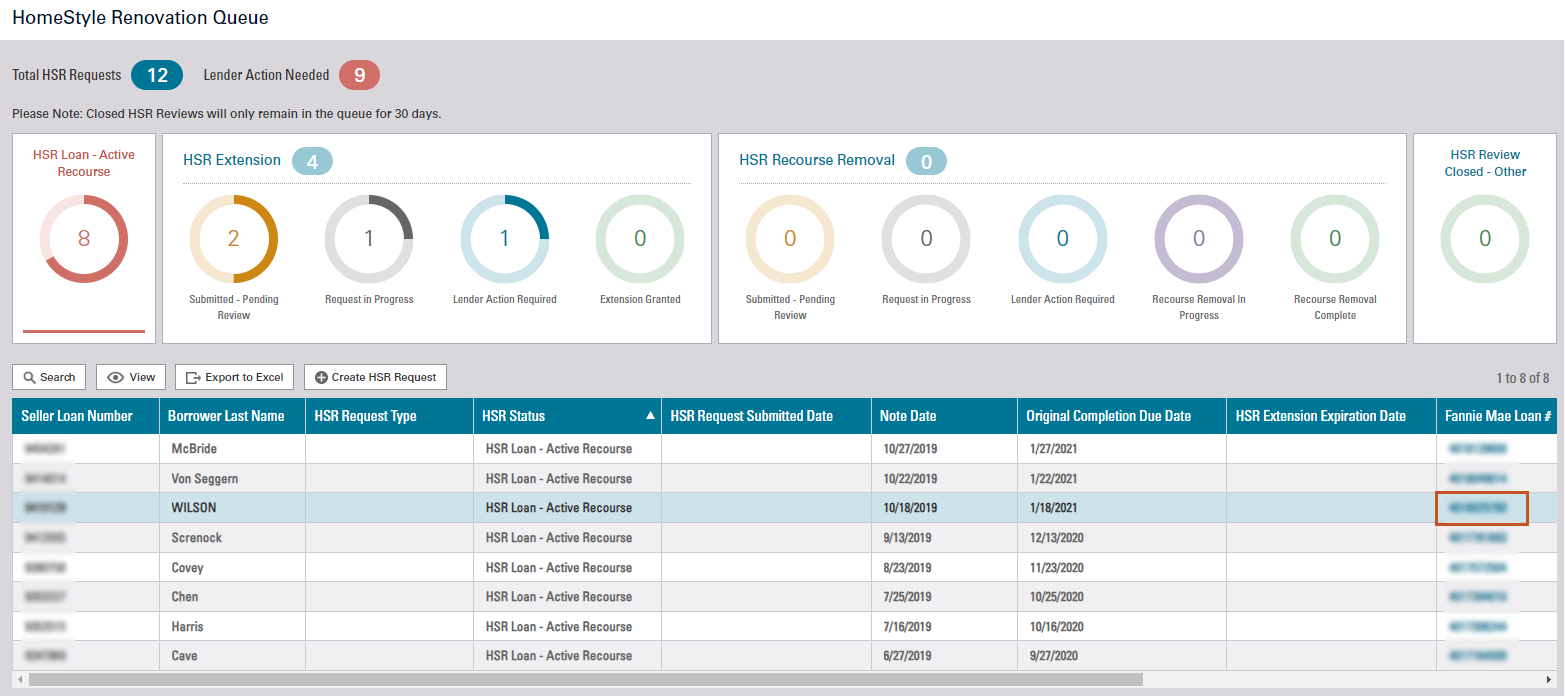
- Click Fannie Mae Loan Number hyperlink.
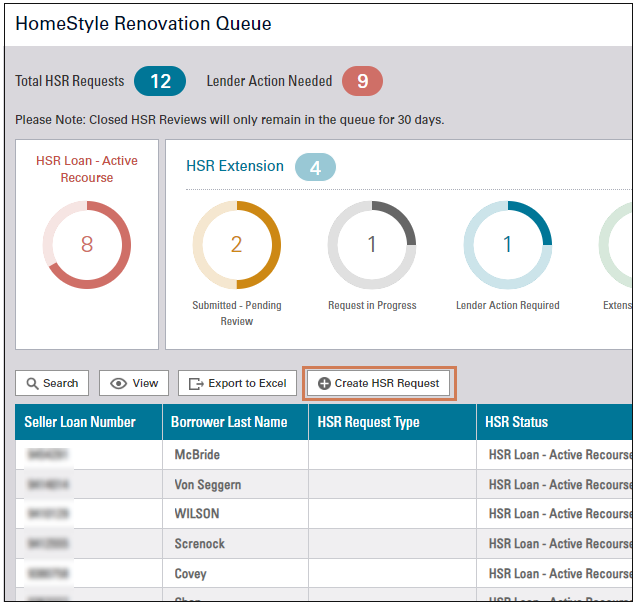
- Click Create HSR Request.
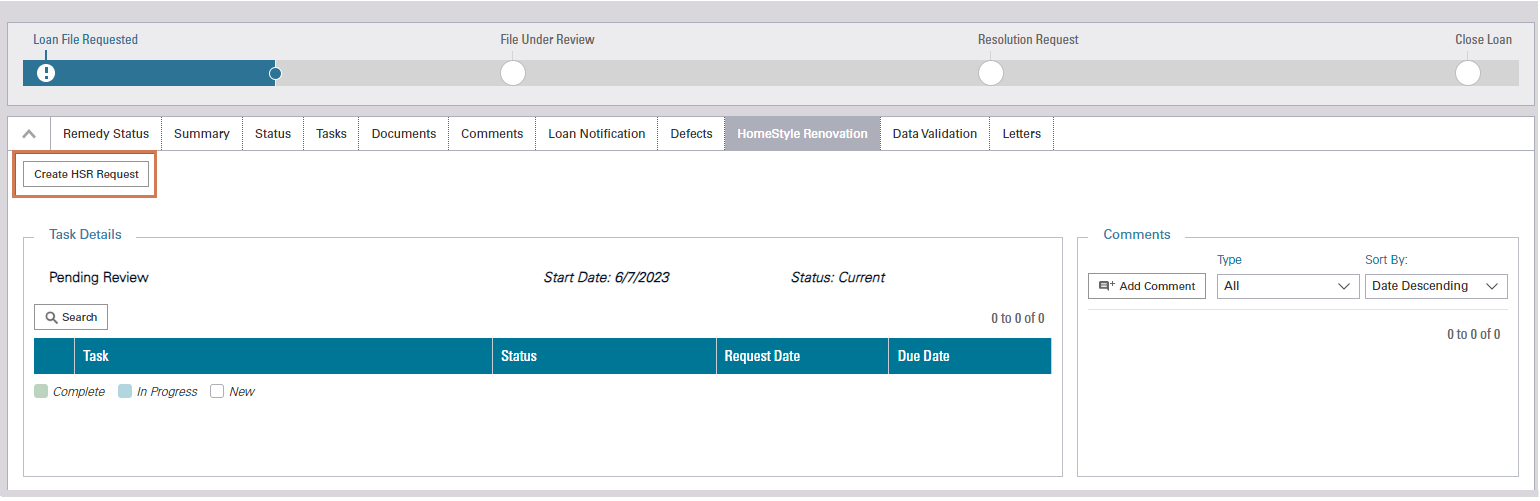
- Select the appropriate drop-down selections and enter information in ALL fields.
Note: The system will NOT allow users to proceed with the request if any information is left blank.
Note: Drop-down selections will vary based upon the request type HSR Extension or HSR Recourse Removal.
HSR Extension - applicable to HomeStyle Renovation loans only.
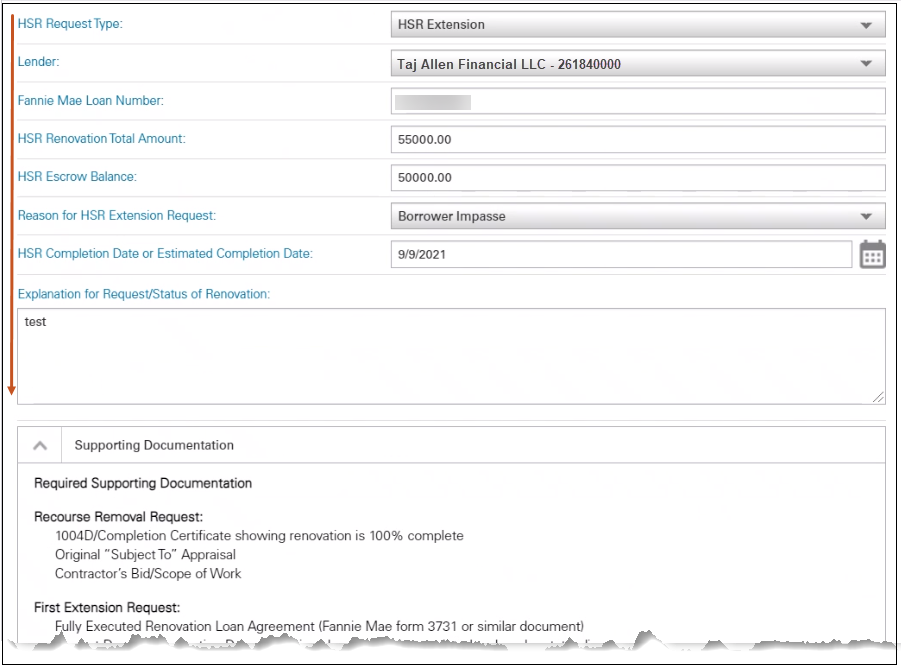
HSR Recourse Removal - applicable to HomeStyle Renovation/HomeStyle Refresh loans.

- Review the Supporting Documentation section to identify documents to upload, per request type.
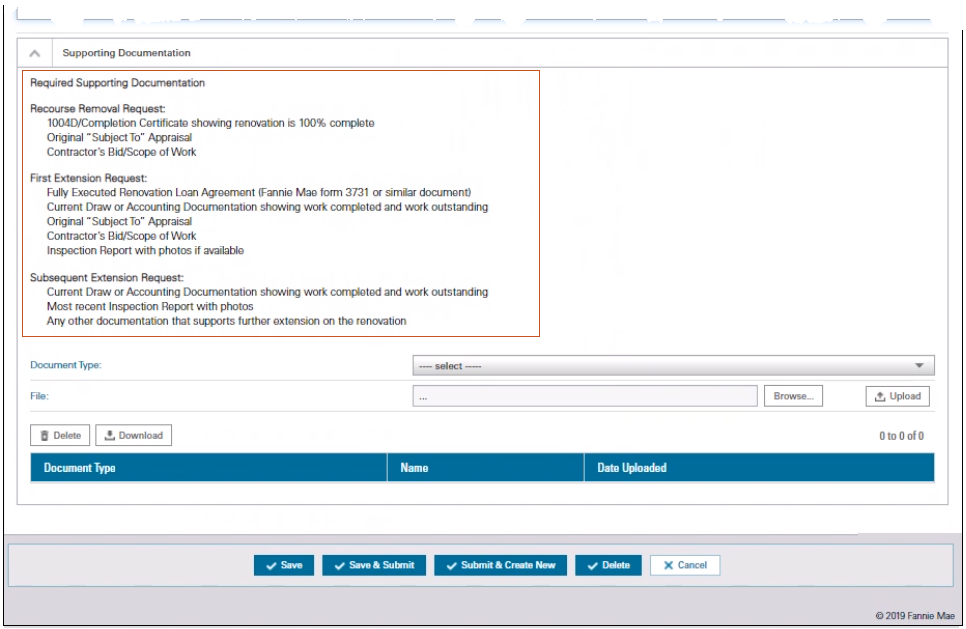
- Select the appropriate Document Type from the fields drop-down list.
- Click Browse and locate the appropriate document.
- Click Upload.
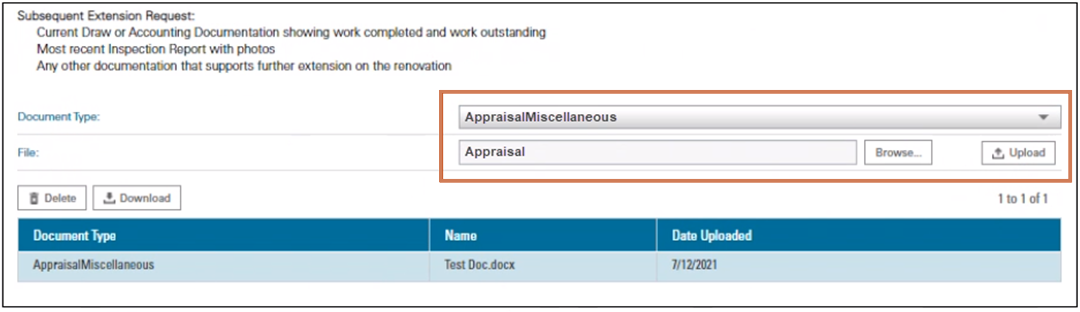
Note: Uploaded documents will be displayed in the Document Type section of the screen.
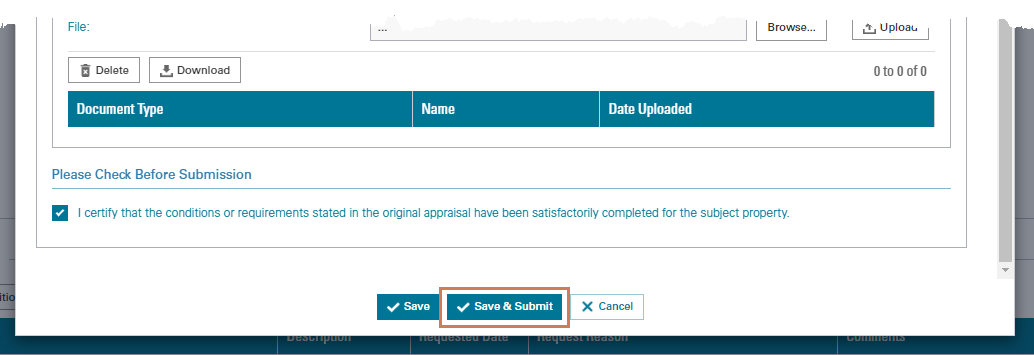
- If the request is for Recourse Removal, Click Certification checkbox.
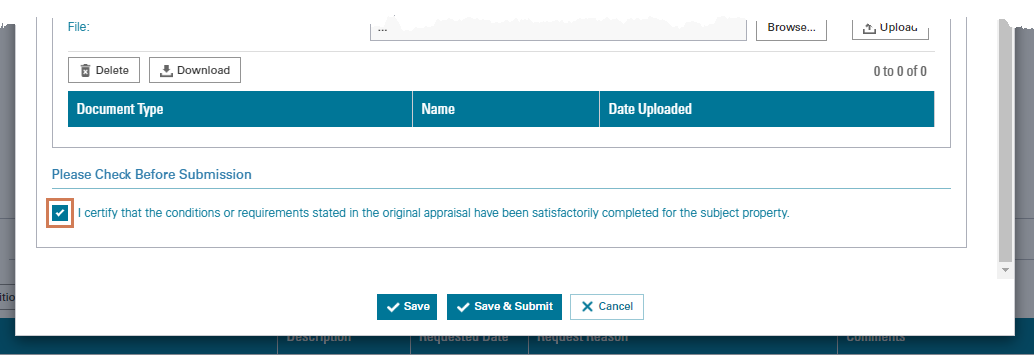
- Click Save & Submit.
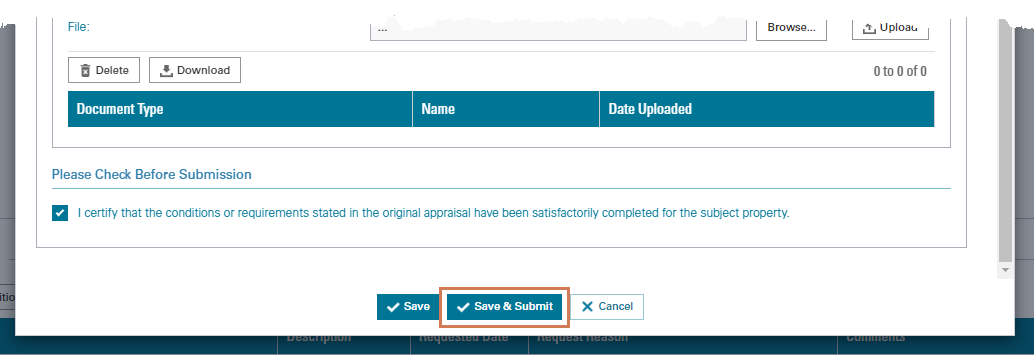
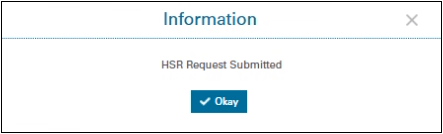
Note: The request process is complete.
- Click Okay.
Loan NOT Found in your HomeStyle Renovation Queue
If the loan is not found in the search results, an HSR Request, following the steps below:
Note: If requesting a second or third extension or recourse removal on a loan that previously had an extension approved, create a new request instead of editing the existing one.
- Click Create HSR Request.
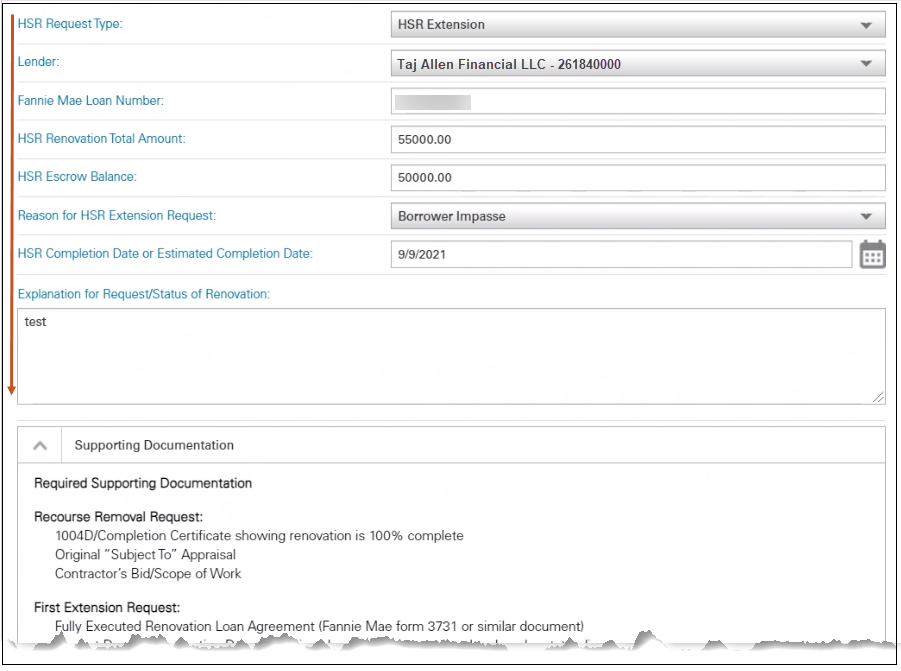
- Select the appropriate drop-down selections and enter information in ALL fields.
Note: The system will NOT allow you to proceed with the request if any information is left blank.
Note: Fannie Mae loan numbers consist of 10-digits and typically start with 401 or 402.
Note: Drop-down selections will vary based upon the request type - HSR Extension or HSR Recourse Removal.
HSR Extension
HSR Recourse Removal
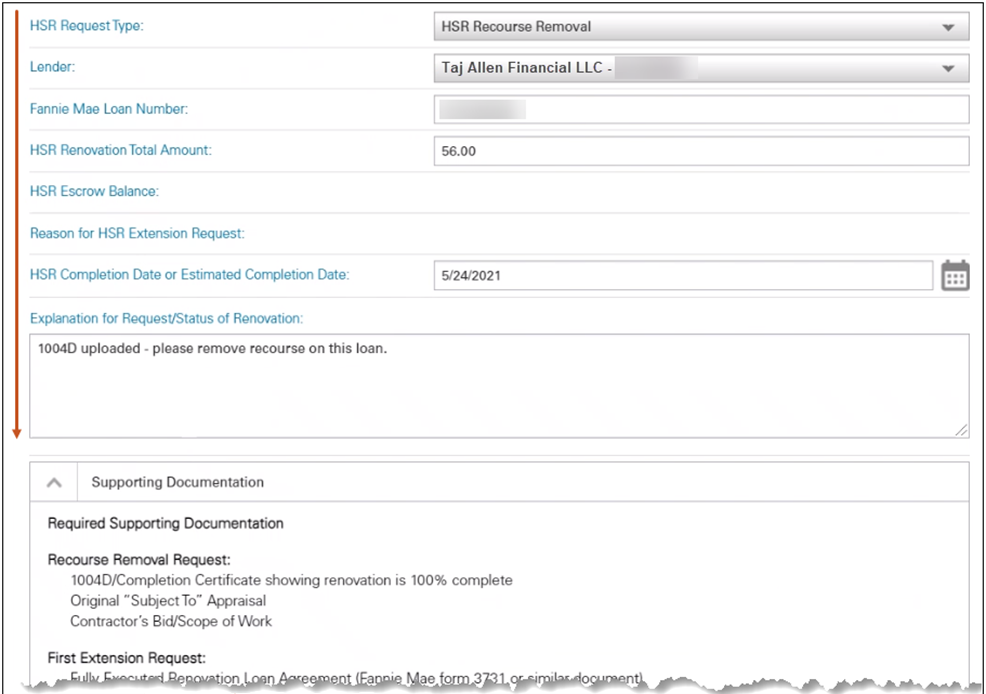
- Review the Supporting Documentation section to identify documents to upload, per request type.
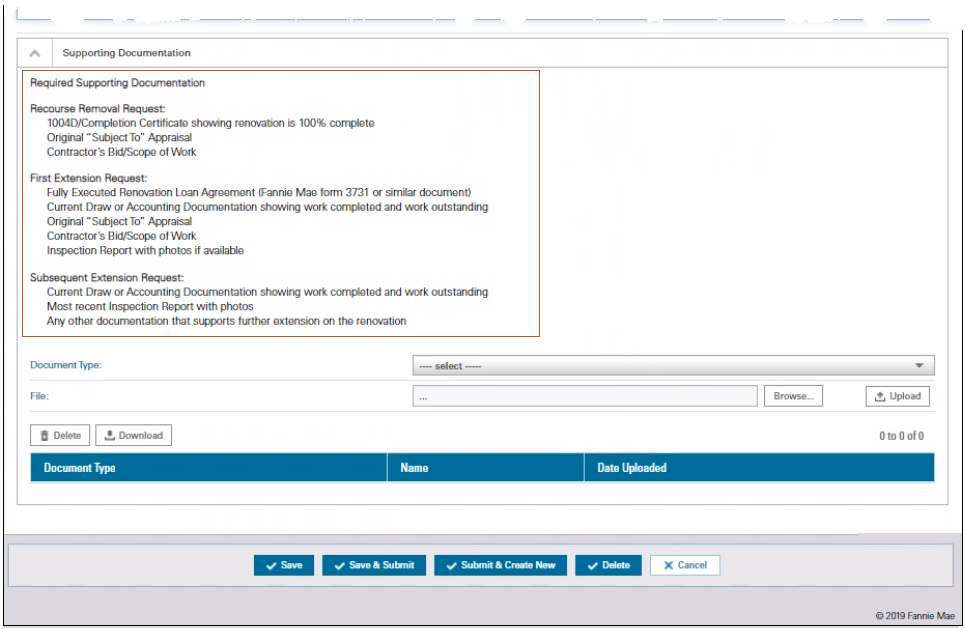
- Select the appropriate Document Type from the fields drop-down list.
- Click Browse and locate the appropriate document.
- Click Upload.
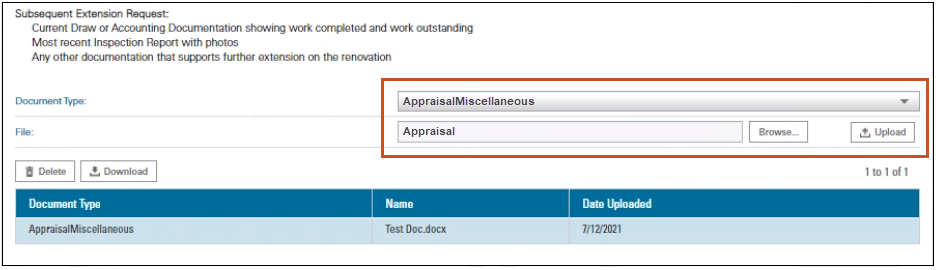
Note: Uploaded documents will be displayed in the Document Type section on the screen.
- If the request is for Recourse Removal, click Certification checkbox.
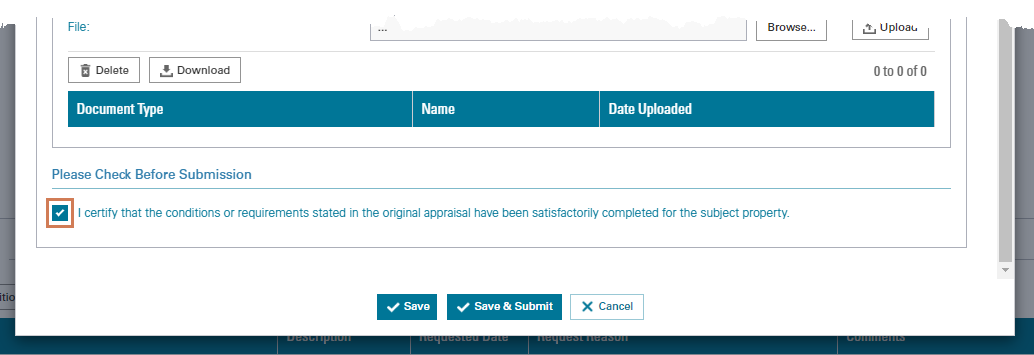
- Click Save & Submit.
Note: Click Submit & Create New to quickly move to the next loan request when working on multiple submissions.
Note: Process is complete.
- Click Okay.